

Creating a monthly budget helps you take control of your finances, plan for expenses, and save for your goals. Excel and Google Sheets are powerful tools that allow you to create customizable, trackable budgets at no extra cost.
In this guide, we will cover how to set up your monthly budget, track income and expenses, use formulas, and leverage templates to make budgeting simple and effective.
Why You Should Use Excel or Google Sheets for Budgeting
- Accessibility: Available on most computers, tablets, and mobile devices.
- Customizable: Tailor categories, formulas, and layout to your needs.
- Trackable: Easily monitor trends, track savings, and visualize expenses.
- Free Tools: Google Sheets is free, and Excel is widely available.
Step 1: List Your Income Sources
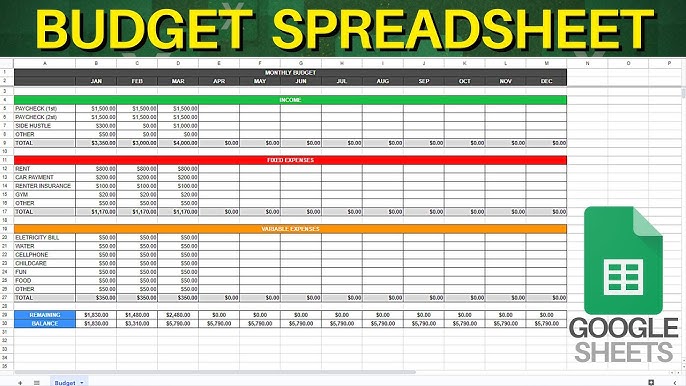
Start by identifying all sources of income, such as salary, freelance earnings, investments, or side hustles. Create a table with columns for:
- Income source
- Amount
- Date received
In Excel, you can use the =SUM() formula to calculate total monthly income automatically.
Step 2: Categorize Your Expenses
Divide expenses into categories to track spending more efficiently. Common categories include:
- Housing (rent, mortgage)
- Utilities (electricity, water, internet)
- Transportation (fuel, public transport)
- Groceries
- Healthcare
- Entertainment
- Savings and investments
Use separate columns for each category and input expected and actual spending.
Step 3: Set Up Your Budget Template
Create a table with columns for:
- Category
- Budgeted Amount
- Actual Spending
- Difference (Budgeted – Actual)
Example formula for the difference column in Excel or Google Sheets:
=C2-B2
Where B2 is budgeted and C2 is actual spending.
Step 4: Use Formulas to Automate Calculations
Key formulas to include:
- =SUM(range) – totals amounts across a range of cells
- =AVERAGE(range) – calculates average spending
- =IF(condition, value_if_true, value_if_false) – for conditional alerts, e.g., overspending
Step 5: Track and Visualize Your Spending
Visualizations help you understand spending patterns:
- Bar charts for monthly expenses per category
- Pie charts for income allocation
- Line charts to track monthly savings trends
Both Excel and Google Sheets have built-in chart tools to create dynamic visuals.
Step 6: Review and Adjust Your Budget Monthly
At the end of each month:
- Compare actual spending to budgeted amounts
- Identify overspending categories
- Adjust next month’s budget to better align with financial goals
Step 7: Use Templates for Faster Setup
Several free templates are available online:
Templates can be customized to include specific categories, savings goals, and charts.
Step 8: Tips for Effective Budgeting
- Be realistic about your expenses
- Track every transaction to avoid surprises
- Automate savings where possible
- Adjust categories based on actual spending patterns
- Set short-term and long-term financial goals
Frequently Asked Questions
Can beginners use Excel or Google Sheets for budgeting?
Yes, both tools are beginner-friendly and templates make setup easier.
Do I need advanced formulas?
Basic formulas like SUM, AVERAGE, and simple subtraction are enough for most users.
Can I track multiple accounts?
Yes, you can create separate sheets for each account or consolidate them in one master sheet.
Are there mobile-friendly options?
Google Sheets can be accessed via mobile app, allowing budgeting on the go.
How often should I update my budget?
Ideally, update daily or weekly to ensure accurate tracking and control over finances.
Can I include savings goals?
Yes, dedicate a category or a separate sheet to track savings and investment goals.