

Slow internet affects productivity, communication, and entertainment. Following a structured troubleshooting process helps identify the exact cause and restore normal speeds quickly.
Step 1: Check Your Internet Speed
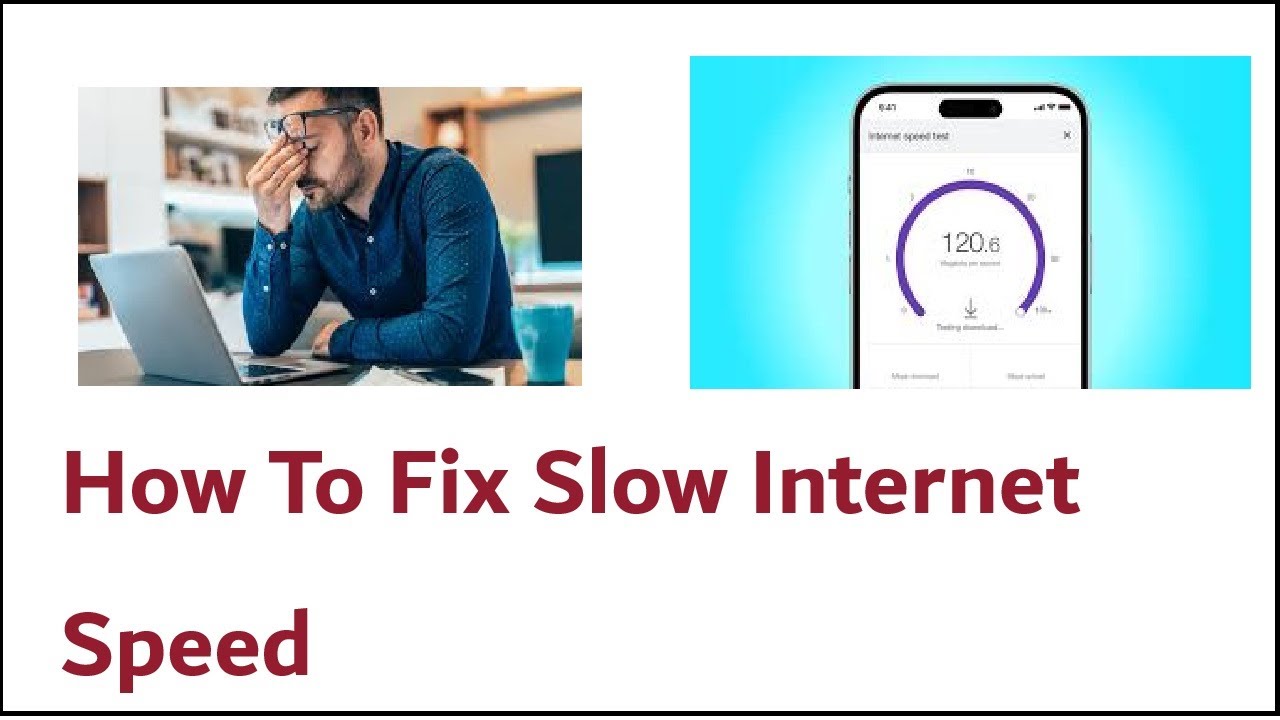
Before making changes, confirm whether your internet is actually slow. Use a trusted speed test to measure download and upload speeds on your phone or laptop.
If the speed is significantly lower than expected, continue with the steps below.
Step 2: Restart Your Device
Restarting clears temporary system issues that may slow down your connection.
- Turn off your phone or laptop completely.
- Wait at least 30 seconds.
- Turn it back on and reconnect to the internet.
Step 3: Turn Airplane Mode On and Off
For phones, toggling airplane mode refreshes the network connection.
- Enable airplane mode.
- Wait 10 seconds.
- Disable airplane mode and reconnect.
Step 4: Check Wi-Fi Signal Strength
A weak signal often causes slow internet. Move closer to the router and avoid physical obstructions such as walls or metal objects.
If possible, place your router in a central, elevated location.
Step 5: Switch Between Wi-Fi and Mobile Data
If Wi-Fi is slow, switch to mobile data. If mobile data is slow, connect to a reliable Wi-Fi network. This comparison helps identify whether the issue is device-based or network-based.
Step 6: Close Background Apps and Downloads
Apps running in the background consume bandwidth and processing power.
- Close unused apps.
- Pause cloud backups and downloads.
- Disable automatic updates temporarily.
Step 7: Update Your Device Software
Outdated software can cause performance issues. Install the latest system updates for your phone or laptop.
Step 8: Forget and Reconnect to the Network
Resetting your network connection can fix configuration errors.
- Go to Wi-Fi settings.
- Select the network and choose “Forget.”
- Reconnect and enter the password again.
Step 9: Check Data Limits and Network Restrictions
Mobile data may slow down after reaching usage limits. Check your data plan and device settings to ensure no restrictions are active.
Step 10: Restart Your Router or Modem
Unplug your router and modem for 30 seconds, then reconnect them. This refreshes your home network and often improves speed.
Step 11: Scan for Malware or VPN Issues
Malware, adware, or VPNs can slow your connection. Run a security scan and disable VPNs temporarily to test performance.
Step 12: Contact Your Internet Service Provider
If none of the steps work, the issue may be network congestion or a service outage. Contact your provider to confirm availability and speed in your area.
Frequently Asked Questions
Why is my internet slow only on one device?
This usually indicates a device-specific issue such as background apps, outdated software, or incorrect settings.
Does restarting the router really help?
Yes. Restarting clears temporary network congestion and refreshes the connection.
Can weather affect internet speed?
Yes. Heavy rain or storms can affect mobile networks and some wired connections.
Should I upgrade my internet plan?
Upgrade only after confirming the issue is not caused by device or network settings.
Why is my internet fast at night but slow during the day?
This is often due to peak-time congestion when many users share the same network.