

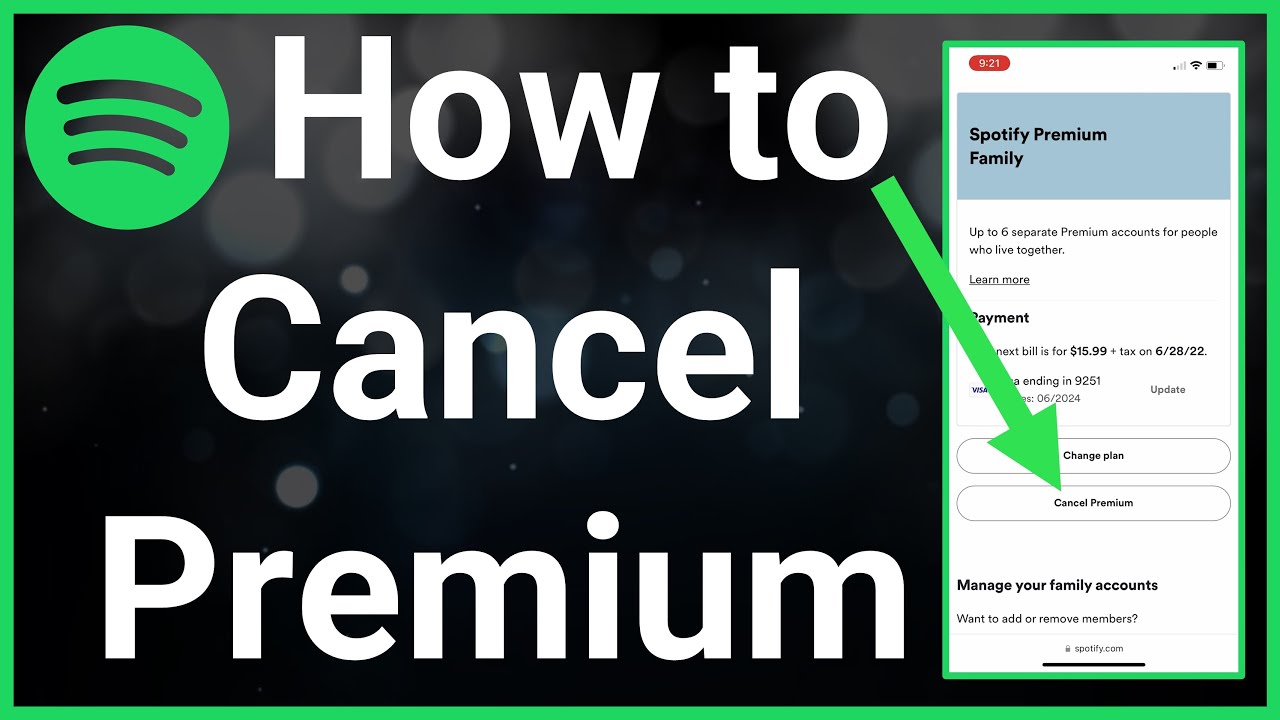
Canceling Spotify Premium in 2026 stops future payments while allowing continued access until your current billing cycle concludes no immediate service cutoff occurs in standard cases. The process varies by signup method: direct Spotify accounts use the website, while Apple/Google/third-party subscriptions require their respective platforms.
Always confirm your billing provider first via your Spotify Account page to choose the right path and prevent frustration.
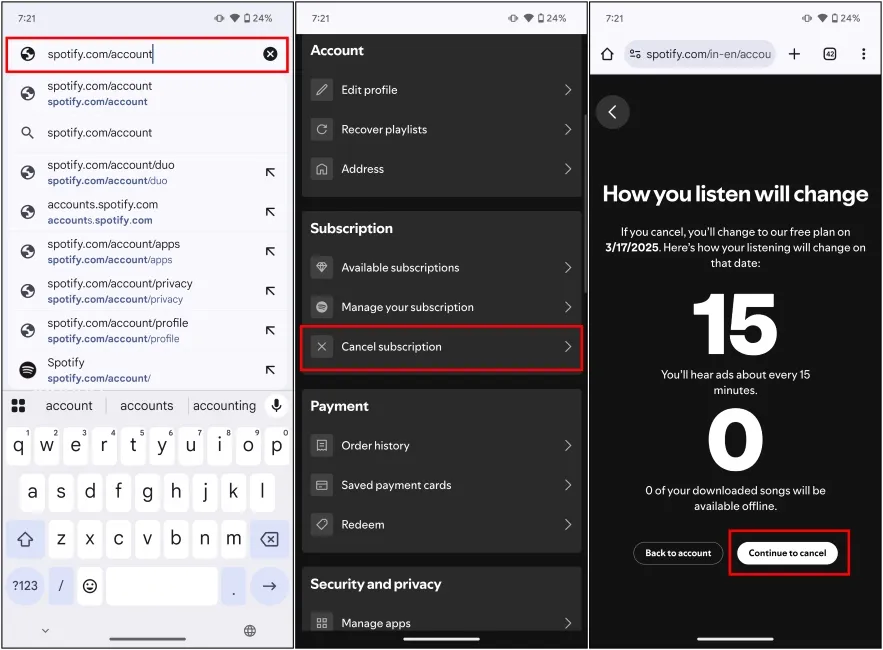
Spotify Account Overview where you locate your plan and cancellation options. (Credit: Spotify Support)
Cancel Spotify Premium Directly on the Website (Direct Signup)
If you subscribed using credit/debit card, PayPal, or similar directly on spotify.com, use this primary method.
- Go to spotify.com/account in any web browser (desktop or mobile—request desktop site on phone if needed).
- Log in with your Spotify email and password.
- Click your profile name or icon in the top-right, then select Account (or go directly to Account Overview).
- Under Your plan or Subscription, click Change or cancel plan (sometimes labeled Manage your plan).
- Select Cancel Premium or Cancel subscription.
- Follow prompts—Spotify may offer retention deals or surveys; choose Continue to cancel or Yes, cancel until confirmation appears.
- Check your email for a confirmation message showing the end date of Premium access.
Premium features remain active until the billing period ends, then your account reverts to free with ads and limited skips.
Cancel Spotify Premium on iPhone or iPad (Apple App Store Billing)
Subscriptions purchased through the iOS App Store are managed by Apple.
- Open Settings on your iPhone/iPad.
- Tap your name at the top.
- Tap Subscriptions.
- Select Spotify from the list.
- Tap Cancel Subscription and confirm.
Apple handles the cancellation; Premium ends at billing cycle close. For refunds (rare), contact Apple Support directly.
Cancel Spotify Premium on Android (Google Play Billing)
Android users subscribed via Google Play follow these steps.
- Open the Google Play Store app.
- Tap your profile icon in the top-right.
- Go to Payments & subscriptions → Subscriptions.
- Choose Spotify.
- Tap Cancel subscription and follow prompts to confirm.
Google confirms via email; access continues until period expiration.
Cancel Spotify Premium Through PayPal or Other Third-Party Billing
If billed via PayPal, mobile carrier, or partners (e.g., telecom bundles), cancel through that provider:
- PayPal: Log into paypal.com → Settings → Payments → Manage automatic payments → Select Spotify → Cancel.
- Mobile carrier/partner: Contact carrier support, visit their app/portal, or check your Spotify Account page for a direct link to the provider’s cancellation page.
Verify billing method in Spotify Account → Subscription first—third-party links often appear there for easy access.
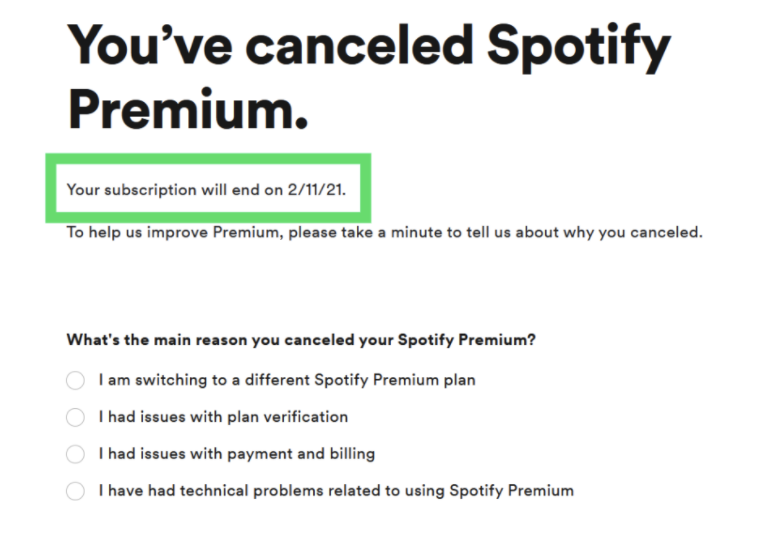
Typical Spotify confirmation email after successful cancellation, detailing end-of-Premium date. (Credit: Spotify)
Spotify Premium Cancellation Policy & Refunds in 2026
Spotify allows cancellation anytime with no fees. Premium access continues until the end of the paid period—no prorated refunds for partial months under standard policy. Your account automatically downgrades to free afterward.
Refund exceptions:
- Within 14 days of initial purchase/renewal (withdrawal right in many regions)—contact support promptly.
- Billing errors or accidental charges—submit request via help form.
- Apple/Google/third-party: Refunds follow their policies, not Spotify’s.
Review the latest Terms and Conditions or Refund Policy for region-specific details.
Alternatives to Full Cancellation: Pause or Downgrade
Consider pausing (if available in your region/plan) or switching to a cheaper tier like Student or Duo instead of canceling entirely. Access these options in Account → Change plan.
Pausing retains playlists/history; downgrading keeps Premium until period end before switching.
Common Problems & Solutions
If no cancel button shows:
- Use web browser (mobile app redirects or hides options).
- Clear cache, try incognito, or desktop site on mobile.
- Ensure you’re the account owner (family plan managers cancel individually).
- Contact Spotify support via message form on support.spotify.com.
After cancellation, monitor statements and save confirmation—no charges should appear post-period.
Frequently Asked Questions
Can I cancel Spotify Premium and keep access immediately?
No—cancellation takes effect at the end of your current billing period. You retain full Premium features until then.
Will I get a refund for the remaining days after canceling Spotify?
Spotify does not issue prorated refunds for partial periods. You pay upfront and use until the cycle ends.
How do I cancel Spotify Premium if subscribed through Apple?
Cancel via iPhone/iPad Settings → Your Name → Subscriptions → Spotify → Cancel Subscription. Apple manages the process.
What happens to my playlists and saved music after canceling?
Playlists, saved songs, and history remain intact on the free plan. You can access them with ads and limitations.
Can I cancel Spotify Premium directly in the mobile app?
No—the app redirects to the website. Use a browser to reach spotify.com/account for the full cancellation flow.
What if I can’t find the cancel option on Spotify?
Try desktop browser, incognito mode, or contact support via the message form on support.spotify.com. Third-party billing may require provider cancellation.
Knowing how to cancel Spotify Premium empowers smart subscription management in 2026. Follow the method matching your billing setup, confirm via email, and enjoy hassle-free transitions—whether downgrading, pausing, or switching services entirely. Always keep records of confirmation for peace of mind.