

Canceling Disney Plus in 2026 stops future billing while letting you continue watching until the end of your current paid period—no mid-cycle cutoff occurs in most cases. The process takes only a few minutes once you identify your billing method, which appears on your Disney+ account page or payment statements.
Use the method matching how you originally subscribed to avoid redirects or confusion.
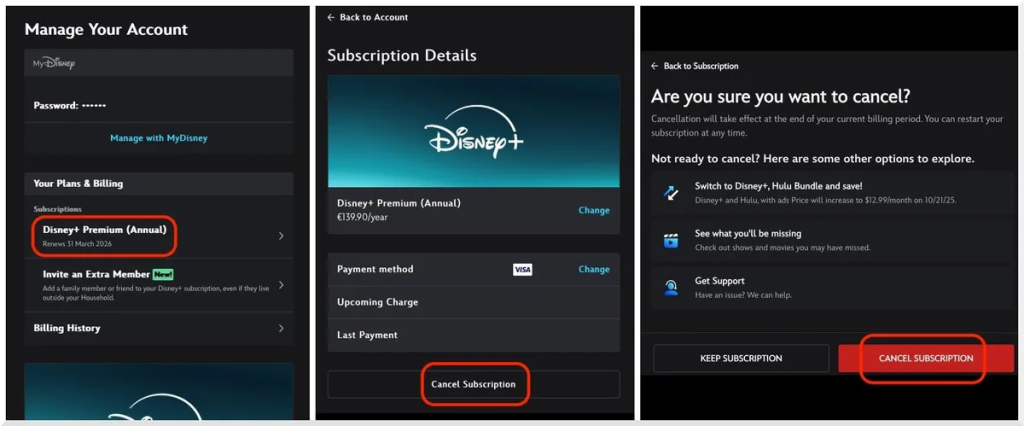
Disney+ Account page where you manage or cancel your subscription. (Credit: Disney+ Help Center)
Cancel Disney Plus Directly on DisneyPlus.com (Direct Signup)
This is the most common method if you subscribed using a credit/debit card, PayPal, or similar directly through the Disney+ website or app.
- Go to disneyplus.com in a web browser (desktop or mobile browser—desktop site recommended on phones).
- Log in with your Disney+ email and password.
- Click your profile icon in the top-right corner, then select Account.
- Under Subscription or Billing Details, click Cancel Subscription.
- Follow the prompts—Disney may offer a survey, retention discount, or pause option; select Continue to Cancel until you reach confirmation.
- Verify receipt of a confirmation email that states your access continues until the end of the current billing cycle.
After cancellation, your account reverts to inactive status at period end—no further charges apply.
Cancel Disney Plus on iPhone or iPad (Apple App Store Billing)
If you subscribed through the iOS App Store, Apple handles billing and cancellation.
- Open Settings on your iPhone or iPad.
- Tap your name at the top of the screen.
- Tap Subscriptions.
- Select Disney+ from the active subscriptions list.
- Tap Cancel Subscription and confirm the choice.
Cancellation processes through Apple; access remains until the billing period expires. Refunds, when eligible, are managed by Apple Support.
Cancel Disney Plus on Android (Google Play Billing)
For subscriptions purchased via Google Play on Android devices, follow these steps.
- Open the Google Play Store app.
- Tap your profile icon in the top-right corner.
- Go to Payments & subscriptions → Subscriptions.
- Select Disney+.
- Tap Cancel subscription and complete the confirmation steps.
Google sends a confirmation; Premium access continues until the cycle ends.
Cancel Disney Plus Bundle (Disney+, Hulu, ESPN+)
If your Disney+ comes as part of the Disney Bundle with Hulu and/or ESPN+, cancellation must be managed through the primary billing platform (usually Disney+ or Hulu depending on signup).
- Log in at disneyplus.com/account or hulu.com/account.
- Navigate to Subscription or Billing Details.
- Choose Cancel Bundle or Manage Bundle → Cancel.
- Confirm—this ends access to all included services at the end of the paid period.
Individual services cannot be canceled separately within the bundle.
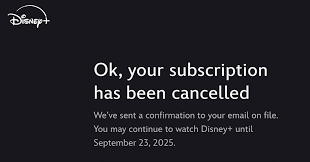
Disney+ displays this confirmation after successful cancellation, showing your end-of-access date. (Credit: Disney+)
Cancel Disney Plus Through Partners (Verizon, Cable Providers, etc.)
If Disney+ was added through a carrier promotion, cable provider, or other partner:
- Verizon: Log into my Verizon app/website → Services & Apps → Manage → Cancel Disney+ add-on.
- Other providers (Spectrum, Comcast, etc.): Access your provider account portal, app, or contact customer support to remove the Disney+ perk.
Your Disney+ Account page often includes a direct link to the partner’s cancellation portal when billed this way.
Disney Plus Cancellation Policy & Refunds in 2026
Disney allows cancellation at any time with no cancellation fees. Access continues until the end of the current billing period—no prorated refunds are issued for partial months under standard terms.
Possible refund scenarios:
- Within 14-day cooling-off period after initial signup (region-dependent)—contact support quickly.
- Accidental duplicate charges or technical billing errors—submit a request via the help center.
- Apple/Google/partner billing—refunds follow their respective policies.
Check the current Disney+ Subscriber Agreement for region-specific rules.
Troubleshooting Common Cancellation Issues
If the cancel button is missing or the process fails:
- Use a desktop browser instead of the mobile app (app often redirects).
- Clear browser cache, try incognito/private mode, or switch devices.
- Confirm you are the primary account holder (not a profile under family sharing).
- Contact Disney+ support via live chat or help form on help.disneyplus.com.
After cancellation, check email and payment statements for confirmation—no further charges should appear.
Alternatives: Pause or Downgrade Instead of Canceling
Disney+ offers a pause option in select regions (up to 3 months) via Account → Pause Subscription. This temporarily stops billing while preserving your profile and watchlist. Alternatively, switch to an ad-supported tier if available in your market to reduce cost without fully canceling.
Frequently Asked Questions
Can I cancel Disney Plus and stop access right away?
No—cancellation takes effect at the end of your current paid billing period. You keep full access until then.
Will I get a refund for unused days after canceling Disney Plus?
Disney+ does not provide prorated refunds for partial billing cycles. You continue watching until the period expires.
How do I cancel Disney Plus if I subscribed through Apple?
Use iPhone/iPad Settings → Your Name → Subscriptions → Disney+ → Cancel Subscription. Apple manages the billing.
What happens to my watchlist and profiles after canceling?
Watch history, profiles, and preferences remain saved for a grace period. Resubscribing within that window usually restores everything.
Can I cancel Disney Plus directly in the mobile app?
The app redirects you to the website. Use a mobile browser to access disneyplus.com/account for the cancellation flow.
Who do I contact if the cancel option isn’t visible?
Try a different browser/device or reach Disney+ support through the help center chat or message form for assistance.
Mastering how to cancel Disney Plus in 2026 gives you full control over your streaming expenses. Identify your billing method, follow the matching steps, save your confirmation email, and enjoy a smooth cancellation experience—whether you’re switching services, taking a break, or simply adjusting priorities. Always double-check statements after cancellation for peace of mind.